How to Upload Files to FunPDF
FunPDF makes uploading files fast and easy with two convenient upload methods in the PDF Editor. Whether you prefer clicking buttons or dragging files, we've got you covered.
Two Ways to Upload Files
Method 1: Drag and Drop Upload (Recommended)
The fastest way to upload files is by dragging them directly into the editor workspace.
Step-by-Step:
- Open the FunPDF Editor
- Locate your files in Windows File Explorer, Mac Finder, or your file manager
- Click and drag one or multiple files from your file manager
- Drop them anywhere on the FunPDF editor window
- A visual overlay will appear showing "Drop your files here" with supported file types
- Release your mouse button to upload
What Happens During Drag and Drop:
- The entire editor area becomes a drop zone when files are detected
- You'll see a blue dashed border with an animated upload icon
- Supported file types (PDF, Word, Excel, PowerPoint) are displayed
- Files are instantly added to your workspace after dropping
- Multiple files can be uploaded simultaneously
Visual Feedback: When you drag files over the editor, you'll see an animated overlay with:
- Bouncing upload icon with gradient background
- "Drop your files here" heading in large text
- Supported file format badges (PDF, Word, Excel, PowerPoint)
- Blue dashed border indicating the active drop zone

Method 2: Click to Upload (File Sidebar)
The file sidebar provides a button-based upload interface for PDF files.
First Upload (No Files Yet):
- Open the FunPDF Editor
- Look at the left sidebar panel - you'll see an empty state
- Click the orange "Upload PDFs" button in the center
- Your system's file picker dialog will open
- Select one or multiple PDF files (only PDFs are accepted)
- Click "Open" or "Choose" in the file picker
- Selected PDFs will immediately appear in the sidebar
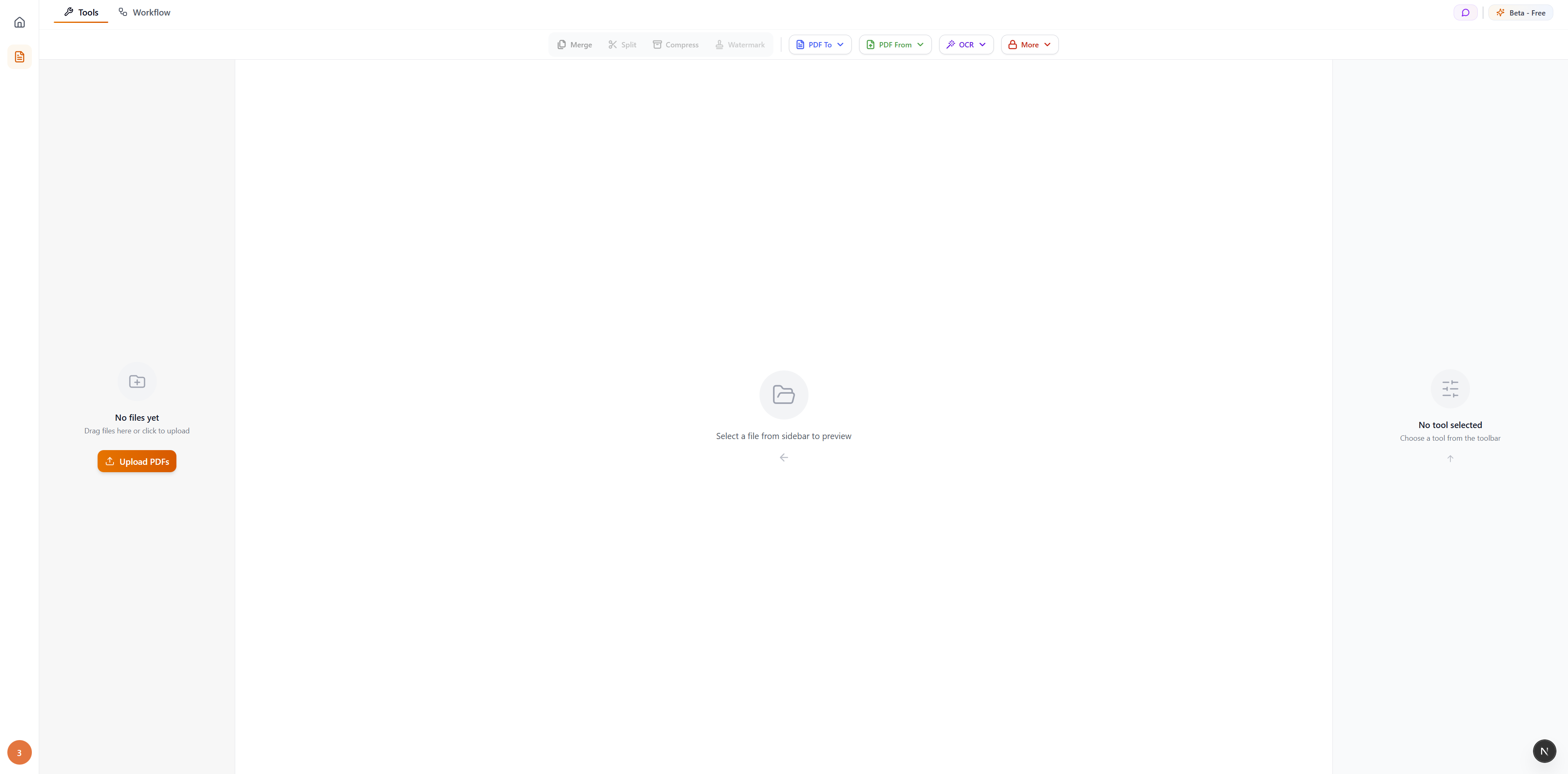
Adding More Files (After First Upload):
- Once you have files in the workspace, a gray "Add files" button appears at the bottom of the sidebar
- Click the "Add files" button to open the file picker again
- Select additional PDF files
- New files are added to your existing workspace

File Sidebar Features:
- First upload button: Orange "Upload PDFs" button (only visible when sidebar is empty)
- Add more button: Gray "Add files" button at bottom (only visible after first upload)
- File type restriction: Only PDF files (.pdf) are accepted via sidebar upload
- Multiple selection: Hold Ctrl (Windows) or Cmd (Mac) to select multiple PDFs
- Search functionality: After uploading files, use the search bar to find specific files
Important Notes:
- The sidebar upload buttons only accept PDF files
- For other file types (Word, Excel, PowerPoint, images), use drag and drop
- The "Add files" button only appears after you've uploaded at least one file
Desktop vs Mobile:
- Desktop: Left sidebar is visible by default
- Mobile: Tap the hamburger menu icon to open the sidebar drawer, then use upload buttons
Uploading Multiple Files
Both upload methods support batch uploading for efficiency.
Using Drag and Drop for Multiple Files:
- Select multiple files in your file manager (Ctrl+Click or Cmd+Click)
- Drag all selected files together
- Drop them on the editor - all files upload at once
- Files appear in the sidebar in the order they were added
Using File Picker for Multiple Files:
- Click "Add files" in the sidebar
- In the file picker, hold Ctrl (Windows) or Cmd (Mac)
- Click on multiple files to select them
- Click "Open" - all files upload simultaneously
Best Practices for Batch Upload:
- Upload related files together (e.g., all chapters of a document)
- For Merge PDF, upload all PDFs you want to combine
- Files maintain their upload order in the sidebar
- You can rearrange files after uploading using drag and drop in the sidebar
Supported File Formats
FunPDF accepts various file types depending on which upload method you use:
Sidebar Upload Buttons (Click to Upload):
- PDF files only (.pdf) - All PDF versions and variants
- The file picker in the sidebar is restricted to PDF files
Drag and Drop Upload:
- PDF files (.pdf) - All PDF versions
- Microsoft Word (.docx, .doc) - For Office to PDF
- Microsoft Excel (.xlsx, .xls) - For Office to PDF
- Microsoft PowerPoint (.pptx, .ppt) - For Office to PDF
- Images (.jpg, .jpeg, .png, .tiff, .bmp, .webp, .gif) - For Images to PDF
- Markdown (.md) - For Markdown to PDF
- Plain text (.txt) - For Text to PDF
- HTML files (.html, .htm) - For HTML to PDF
Important: To upload non-PDF files (Word, Excel, PowerPoint, images, etc.), you must use drag and drop. The sidebar upload buttons only accept PDF files.
File Size and Processing
FunPDF uses smart processing based on file size:
Small Files (Under 10MB)
- Processing mode: Instant synchronous conversion
- Experience: Immediate results, no waiting
- Upload speed: Fast for most files under 10MB
- Best for: Most PDFs, documents, and images
Large Files (10MB to 200MB)
- Processing mode: Background asynchronous processing
- Experience: Real-time progress bar with status updates
- Upload speed: Depends on internet connection
- Best for: High-resolution scans, image-heavy PDFs, large documents
Maximum File Size
- Current limit: 200MB per file
- Recommendation: If you have larger files, use Compress PDF first
- Multiple files: Each file must be under 200MB individually
Troubleshooting Upload Issues
Upload Button Not Responding
Cause: Browser security restrictions or script execution disabled
Solution:
- Ensure scripts are allowed to run in your browser
- Try a different browser (Chrome, Firefox, Safari, Edge all supported)
- Clear your browser cache and reload the page
- Check if browser extensions are blocking file uploads
Drag and Drop Not Working
Cause: Browser compatibility or permission issues
Solution:
- Use the "Add files" button instead as an alternative
- Update your browser to the latest version
- Try dragging files one at a time instead of multiple
- Ensure you're dropping files on the editor area, not outside the browser window
Files Not Appearing After Upload
Cause: File format not supported for current tool or corrupted file
Solution:
- Check Supported File Formats for your tool
- Verify the file opens correctly on your computer before uploading
- Try re-saving the file in its native application
- Check if the file is password-protected (use Decrypt PDF first)
"File Too Large" Error
Cause: File exceeds 200MB limit
Solution:
- Use Compress PDF to reduce file size first
- Split large PDFs into smaller parts using Split PDF
- For images, reduce resolution before converting to PDF
- Remove unnecessary pages before processing
Slow Upload Speed
Cause: Large file size or slow internet connection
Solution:
- Wait patiently - large files take time to upload
- Check your internet connection speed
- Close other bandwidth-heavy applications
- Try uploading during off-peak hours
- Consider compressing files before upload
Browser Compatibility
FunPDF's upload features work on all modern browsers:
Fully Supported Browsers:
- Google Chrome 90+ (Recommended)
- Mozilla Firefox 88+
- Safari 14+ (macOS and iOS)
- Microsoft Edge 90+
- Opera 76+
- Brave (Chromium-based versions)
Mobile Browsers:
- iOS Safari - Full support with tap-to-upload
- Chrome Mobile - Full support on Android and iOS
- Samsung Internet - Full support
- Note: Drag and drop is not available on mobile devices - use the "Add files" button instead
Security and Privacy
Your uploaded files are handled with strict security:
- Client-side processing: Merge PDF, Split PDF, Add Watermark, PDF to Images, and Images to PDF are processed entirely in your browser using Web Workers and never leave your device
- Server processing: Other tools (conversions, compression, OCR, encryption) process files on our secure servers
- Synchronous processing: Small files (< 10MB) are processed quickly with immediate results
- Asynchronous processing: Large files (10MB - 200MB) use background processing with real-time progress tracking
- Encrypted transfer: All server-bound files are uploaded via SSL/TLS encryption
- Automatic deletion: Server-processed files are automatically deleted after 2 hours
- No permanent storage: We don't permanently store any uploaded files
- No tracking: File contents are never analyzed, logged, or shared
Learn more about our data security practices.
Tips for Efficient Uploading
Organize Files Before Uploading
- Rename files with clear names before uploading
- Group related files in a folder for easy batch selection
- For PDF merging, number files in the desired merge order (1-chapter1.pdf, 2-chapter2.pdf)
Choose the Right Upload Method
- Use drag and drop when: You have files already visible in your file manager
- Use "Add files" when: You need to navigate through folders to find files
- Use batch upload when: Merging multiple PDFs or creating multi-image PDFs
Optimize File Sizes
- Compress large PDFs before converting to other formats
- Reduce image resolution for faster uploads
- Remove unnecessary pages before processing
Working with Multiple Files
- Upload all files first, then select the tool to use
- Rearrange files in the sidebar by dragging after upload
- Use the search bar in the sidebar to quickly find files when you have many uploaded
Keyboard Shortcuts
- Ctrl/Cmd + Click in file picker: Select multiple non-consecutive files
- Shift + Click in file picker: Select a range of files
- Escape: Cancel file picker dialog
Next Steps
Now that you know how to upload files, explore what you can do with them:
- Merge PDF Files - Combine multiple PDFs into one
- Split PDF - Extract specific pages or divide PDFs
- Convert PDF to Word - Make PDFs editable
- Compress PDF - Reduce file sizes
- Add Watermark - Brand your documents
- OCR Searchable PDF - Make scanned PDFs searchable
Visit the FunPDF Editor now to start uploading and processing your files!
Related Articles
What is FunPDF?
Learn about FunPDF and what it can do for you
Supported File Formats - PDF, Word, Excel, Images & More
Complete guide to file formats supported by FunPDF - PDF, Word (DOCX/DOC), Excel (XLSX/XLS), PowerPoint (PPTX/PPT), images (JPG, PNG, TIFF, WebP, BMP, GIF), HTML, Markdown, TXT, and URLs. Learn input/output format compatibility and conversion options
File Size Limits
Understanding file size limits and processing modes - synchronous processing for small files, asynchronous background processing for large files with real-time progress tracking and automatic file deletion
Need More Help?
Our support team is ready to assist you with any questions or issues.